

We’ve just launched a first of its kind, Microsoft integration in Australia – SMS for Outlook.

SMS for Outlook
Don’t get lost in their inbox. Send SMS from Outlook and jump the queue.
How to send SMS from Outlook?
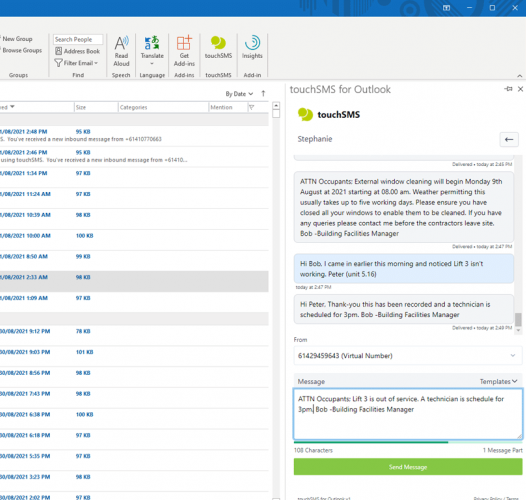
We aim to make communicating with your customers easy, efficient and effective. touchSMS for Outlook Add-in will allow you to send SMS text messages directly from Outlook, without the need to leave your email environment or export data into another program. Simply click on the touchSMS icon on your toolbar to start a conversation.
Send SMS instantly by manually adding recipient numbers or by searching and selecting from your contacts. Adding touchSMS to Outlook also gives you access to the ultimate conversational tool – SMS Chat. The SMS Chat feature allows you to efficiently manage conversations as you would with your phone. Edgility SMS Chat is real-time – any inbound messages received will pop up instantly in your chat thread, so you can keep the conversation going.
Why SMS is so effective?
With almost as many handsets in circulation as there are people on earth, SMS is perhaps the most widely accepted form of communication available. 98% of text messages are read by their intended recipient with 3 minutes of delivery. The immediacy and rate of successful delivery make it more effective for reminders, alerts, and notifications than email.
Already signed up for touchSMS?
Now download the Add-in Excel.
How to get started?
-
-
- Create a touchSMS account and add credits
- Download and install the touchSMS for Outlook Add-in
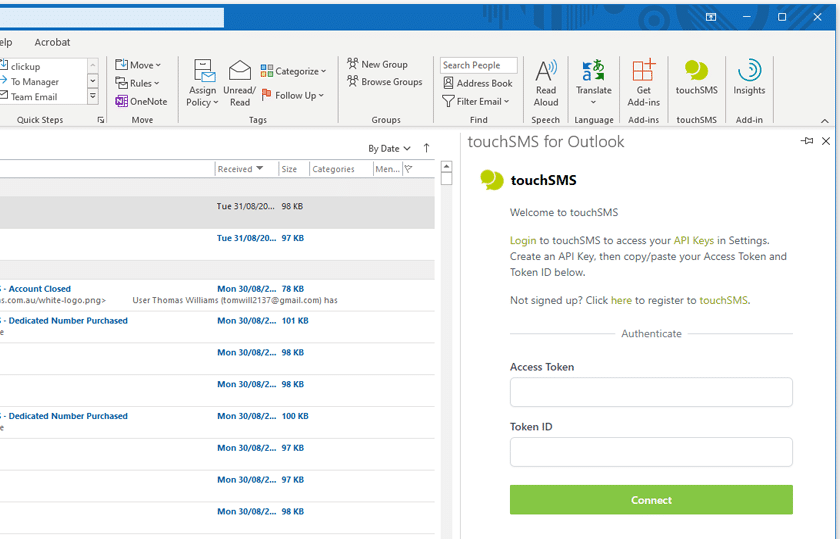
- Connect the apps: Setup takes a few minutes, log into your touchSMS account to create your API key.
- Once connected you can start sending SMS straight from Outlook.
-
More Integrations

Slack
Connect Slack to touchSMS. Send and receive SMS within your slack workspace and specify a channel.
More
Maropost Commerce Cloud
Automatically send personalised order status notifications and abandoned cart alerts by SMS. Import your customers to your touchSMS account to make sending SMS marketing and promotions fast and effective.
More
Zapier
Instantly connect SMS via Zapier with 3000+ other apps you use everyday - it's the easiest way to automate your communications.
MoreFAQ
How can I send a text message from Outlook using touchSMS?
There are 2 options when sending a text message from Outlook using touchSMS – both are super simple. Install touchSMS for Outlook app or use Email to SMS.
Go to apps in Outlook, search for and add the touchSMS app to your Outlook profile. The app will install touchSMS as an app in the sidebar – sign in using your touchSMS login credentials to manage SMS conversations using SMS Chat.
Using an older version of Outlook? No problem. You can also send SMS from Outlook by using Email to SMS:
- Open a new email
- Enter your recipient’s mobile number followed by the @touchsms.email domain in the To: field where you would normally enter an email address
- Compose your message in the email body
- Click send.
The touchSMS server will convert your email to an SMS and deliver it to your recipient/s.
What are the benefits of sending SMS from Outlook?
Many users love the ability to send SMS in Outlook because it combines convenience and reach. Key benefits include:
- Speed: Text messages typically have much higher open rates and are read within minutes.
- Efficiency: Manage both email and SMS communications from one place.
- Personalisation: Quickly tailor messages with recipient details stored in touchSMS contacts.
Is it possible to send bulk SMS from Outlook?
Yes! The touchSMS integration supports bulk messaging directly from Outlook. This means you can send personalised SMS campaigns or notifications to multiple recipients on your contact list at once.
- Compose your SMS and apply personalisation tags for each recipient.
- Send bulk SMS with the confidence that each message is customised and delivered reliably.
Bulk SMS from Outlook is ideal for promotions, event reminders, or internal announcements.
Can I receive replies to SMS messages in Outlook?
Absolutely! Inbound SMS notifications are sent via email – so you never miss a beat. Then, you can continue the conversation via SMS by using touchSMS app in Outlook, or click reply to your email inbound notification to text back.
How do I format phone numbers to send SMS from Outlook?
While touchSMS can identify and clean up various mobile number formats, entering numbers in international format ensures your SMS messages get delivered without a hitch.
Tips for formatting phone numbers include:
- Use the international format: start with “61” for Australian numbers, followed by the mobile number without the leading zero (e.g., 61412345678).
- Avoid spaces when typing the number.
Proper formatting helps the system route your messages efficiently, especially when sending to contacts from different countries.
What is Outlook to SMS integration, and how does it work?
The Outlook to SMS integration allows you to bridge the gap between email and mobile text messaging. Essentially, it connects your Microsoft Outlook account to the touchSMS platform so that you can:
- Send SMS messages directly from Outlook’s familiar interface
- Save contacts and groups in touchSMS to send personalised or bulk text messages.
- View SMS conversation history with a contact to add context to your reply
- Use pre-saved SMS templates for quick sending of reminders and alerts
- Use Tags to categorise and filter message threads
- Send bulk SMS
- Add contact details to numbers not yet saved
How do I get started with sending SMS from Outlook using touchSMS?
Getting started is easy:
- Sign up for a touchSMS account if you haven’t already.
- Login and head to INTEGRATIONS > OUTLOOK and click configure
- Add the touchSMS for Outlook App to your Microsoft 365 profile
- Log in to the App using your touchSMS credentials
Hit a snag? touchSMS support is ready to help with onboarding and troubleshooting.